First Start and getting familar
You have installed Hilite on your PC. Let start playing around with Hilite.
There is a shortcut on your desktop and in the start menu. If this is not the case, you always can run it directly from the install directory with three different startup scripts.
During the very first start, Hilite may ask you for the GPU to use. Always select the GPU from Nvidia or AMD.
The next thing Hilite will do, is to generate all required custom shaders for rendering and interaction for your specific hardware. This is the reason why the first start and use can be a little bit slower.
Since you want o be sure that everything is working fine, we provided a Demoscene for testing : add Template - > #Demo Scenes -> Workshop ... .
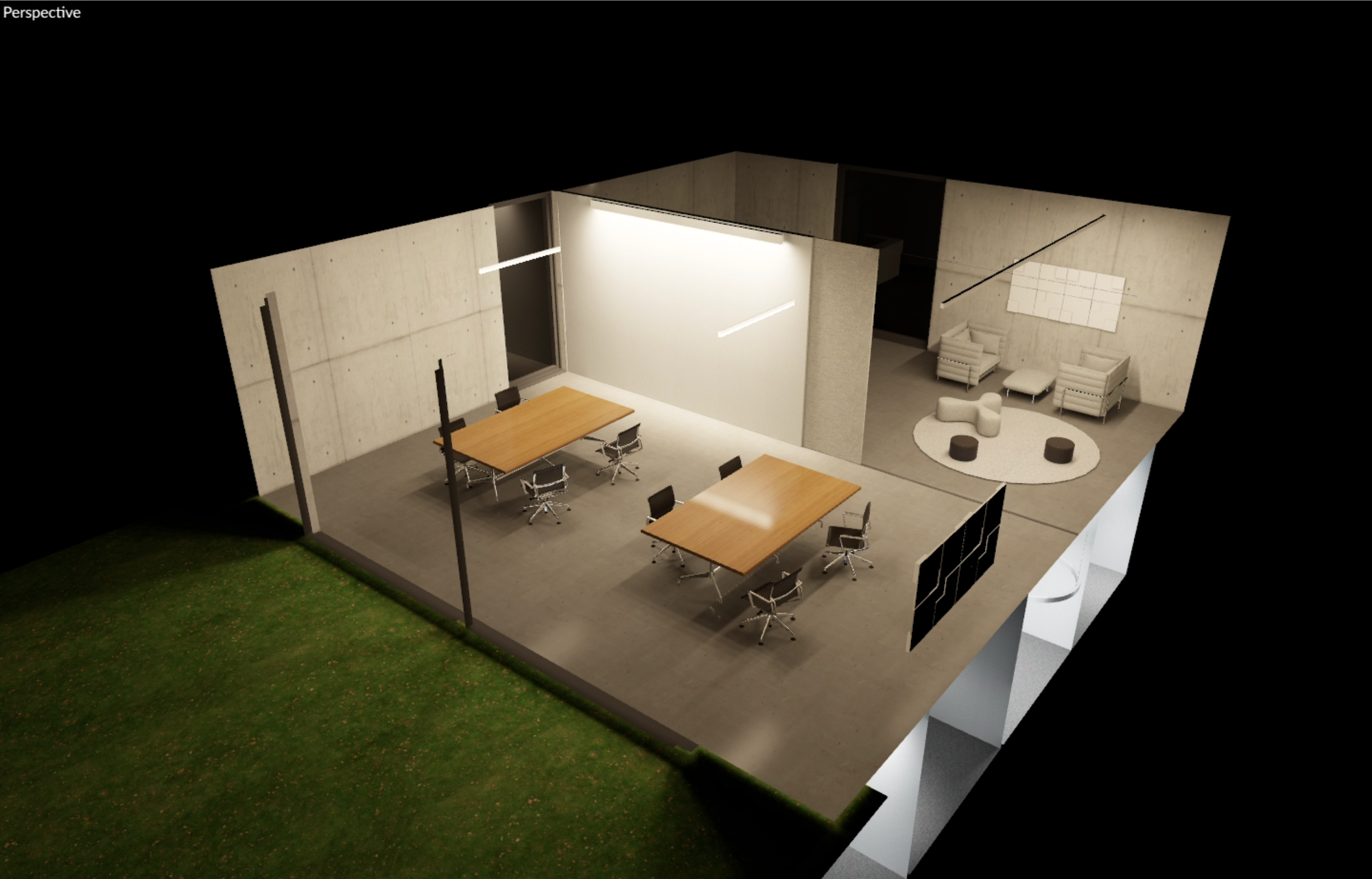
If hilite is working well, you should see warm lighing on the ground floor and cool lighting in the basement. The reflections on the tables and the floor are also a very good indicators that Hilite is working on your Hardware.
Viewport Navigation
Hilite uses well knows basic for the navigation:
- WASD keys for navigation with the keyboard
- The left mouse button to turn around by holding the button.
- The right mouse button to pan the view
- the scrollwheel is used for dolly in and out
- to selct objects click on an object. "f" will zoom to the selected object
Manipulating Objects
We strongly suggest to also use the keyboard shortcuts for
- Placing and moving objects on any surface : press key "1"
- Moving objects along an axis : press key "2"
- Rotating objects : press key "3"
- Scaling objects : press key "4"